 romlyd
Your first measurement
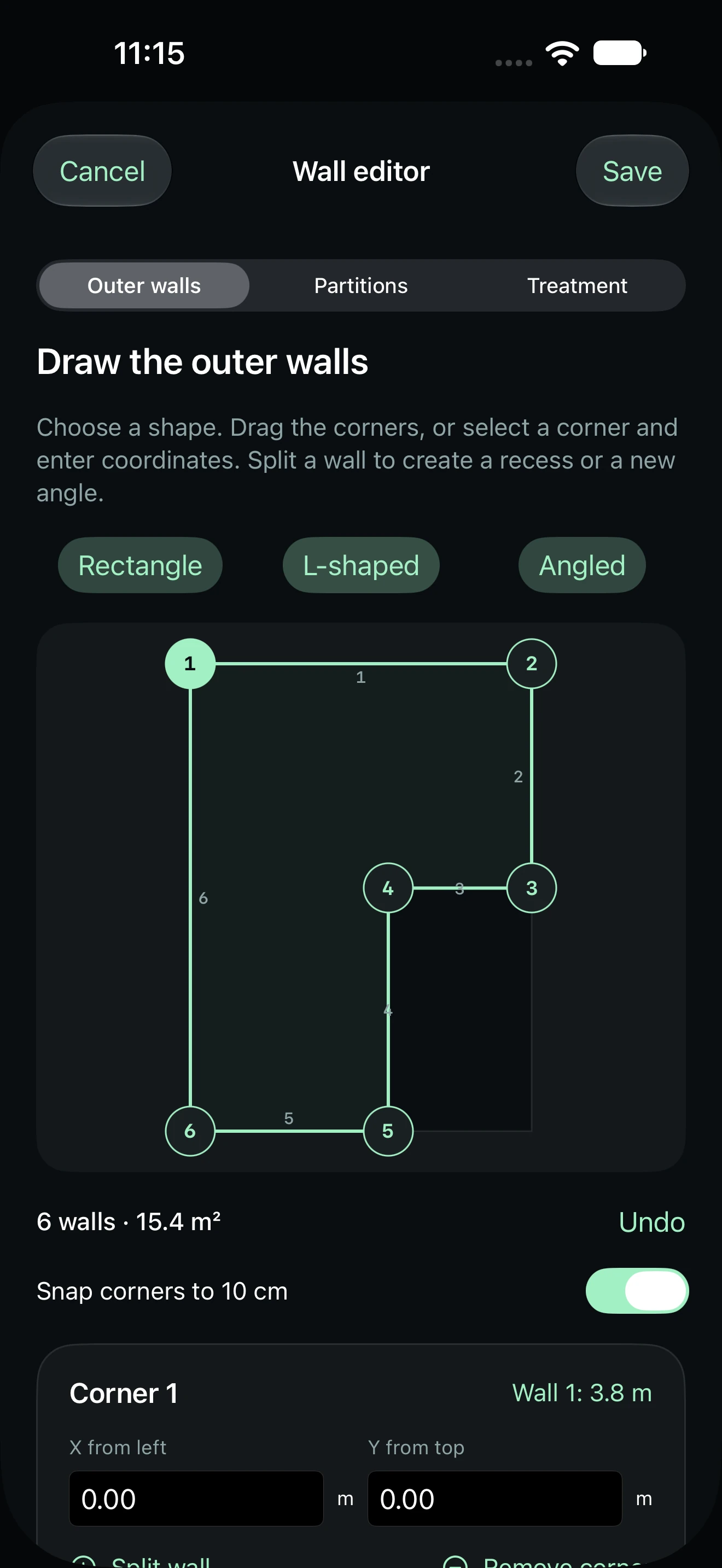
- Describe your room.
Open Room → Edit and enter internal dimensions and height. Use Walls for irregular outlines, partitions and doors. Place the speakers and listener where they actually are. On a supported LiDAR device, Scan room can estimate the outer boundary; review all dimensions before importing.
- Keep the measurement device still.
Place it at ear height at the listening position. Keep the same microphone and orientation, with the microphone openings unobstructed.
- Play a known signal through your system.
Use steady pink noise, preferably played from another device. Tools can export a synthetic WAV test signal. Start at low volume and keep playback level fixed for comparisons. The built-in phone or tablet speaker is unsuitable for deep-bass tests.
- Measure and save.
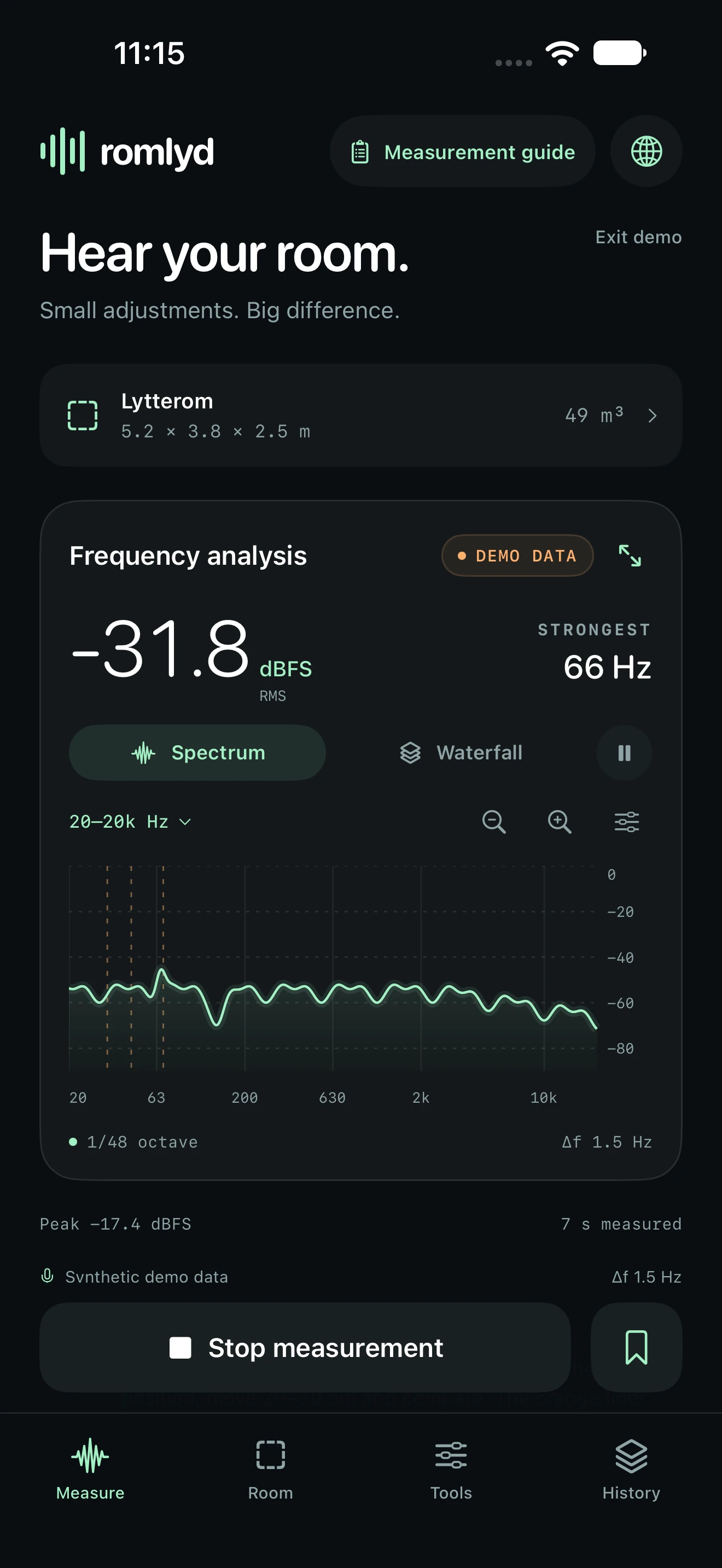
Choose Start measurement and grant microphone access. Measure at least 20 seconds of steady pink noise and save while the signal is still playing. Name the measurement and record the channel and placement.
- Explore the result.
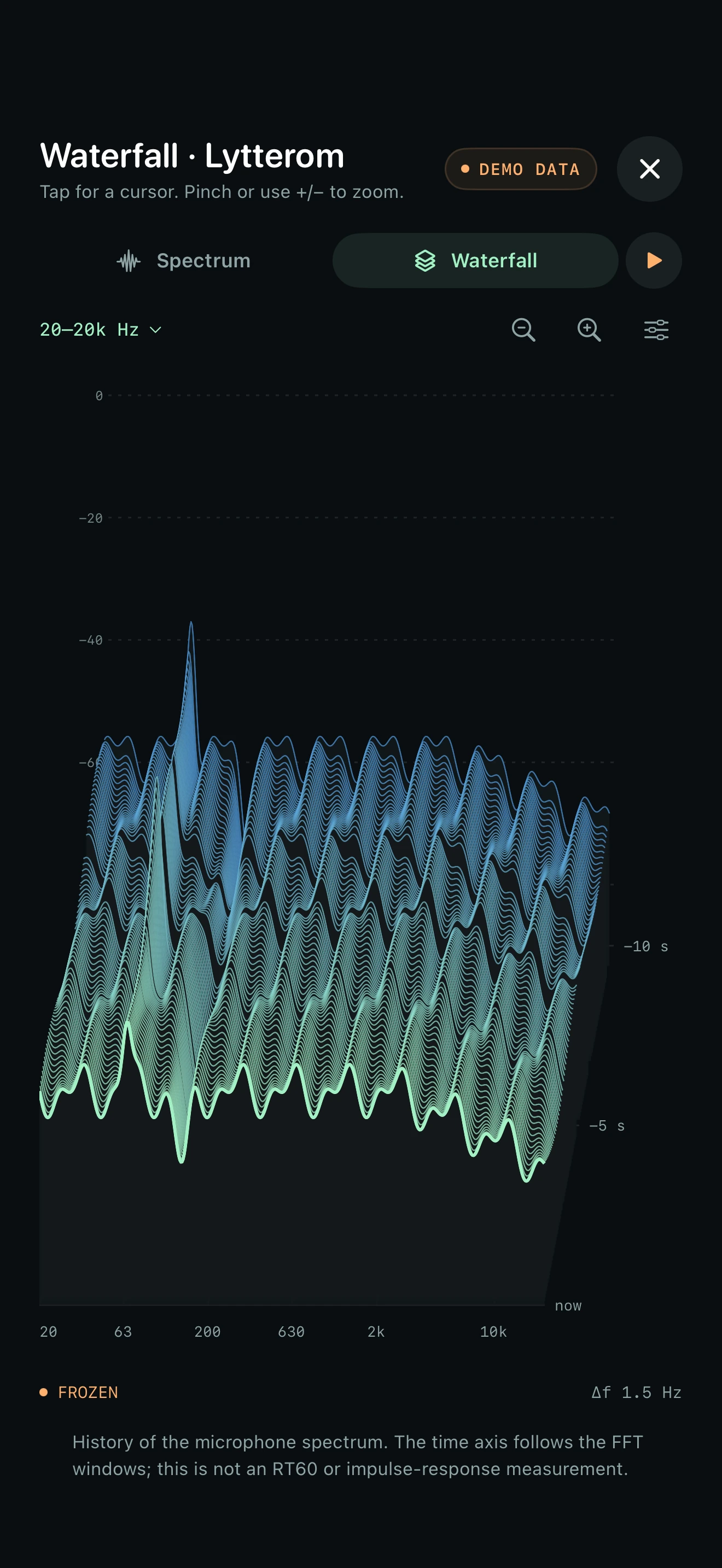
Use the averaged bass spectrum for placement comparisons. Open Waterfall in full screen to follow spectrum changes over time. The in-app Measurement guide explains each step.
- Change one thing and repeat.
Stop measurement after saving. Move a speaker or the listener, update the room map, and start a fresh measurement. History can compare saved curves and assess placements.
Before and after acoustic treatment
Keep the speakers and measurement device fixed. Save a baseline, stop measurement, add or move one rug, curtain or panel, and update the editor. Use the same signal, level, channel and microphone orientation for a new measurement of at least 20 seconds. In History, choose Before and after treatment and confirm the matching conditions.
A smoother curve at one location does not by itself prove shorter reverberation or better overall sound. Repeat the pair and listen. Romlyd can report small, mixed or uncertain differences.
Questions and troubleshooting
The microphone will not start.
Enable Romlyd in device Settings → Privacy & Security → Microphone. Close other audio apps, return to Romlyd and try again. Demo mode and manual room editing work without microphone access.
The signal is weak, clips or plays from the wrong device.
Check the microphone and output shown in the app. Keep microphone openings clear. Reduce playback volume if it clips. For stable comparisons, export pink noise and play it through the system from another device. Check the actual audio route before measuring.
Measurement stopped.
Romlyd stops measurement and test playback when it enters the background. Calls and audio-route changes can interrupt it too. Start a fresh measurement once the route is stable.
Does waterfall measure reverberation time?
No. It is spectrum history, not RT60 or an impulse response. The analysis window itself can create apparent persistence. dBFS is digital level, not calibrated sound pressure in dB SPL.
What can the simulation predict?
It illustrates simplified geometric sound paths and estimated material losses. It does not accurately predict bass response, diffraction or real RT60. Material thickness, mounting and construction matter; verify suggestions with measurements and listening.
How does LiDAR scanning work?
On a RoomPlan-compatible device, open Room → Scan room, stop any measurement and grant camera access. Review the outline and dimensions before choosing Use this room. One outer floor boundary and a common height are imported. Add partitions, doors and materials manually. Devices without LiDAR use the manual editor.
Why can’t I compare these measurements?
Demo data, short or weak measurements, clipping, different microphones or changed room geometry may invalidate a comparison. Before/after treatment also needs unchanged speaker and listener positions. Follow the explanation and repeat under stable conditions.
How do I save, share or delete data?
Save from Measure. Each measurement includes the room setup at that time. Open it in History for details and CSV export; press and hold it to delete it. Share reports using the system share sheet. Data stays on that device; there is no Romlyd account or cloud sync. Deleting the app removes its local storage; offloading can retain data. Handle exports and system backups separately.
Where can I change language?
Tap the globe and choose Norsk or English. Names and notes you entered are preserved. The choice is remembered on that device.
Contact support
Need a hand? Send a question or describe a problem below. We will use your email address to reply.
You can also email support@romlyd.com. Please do not send passwords or unnecessary personal information.